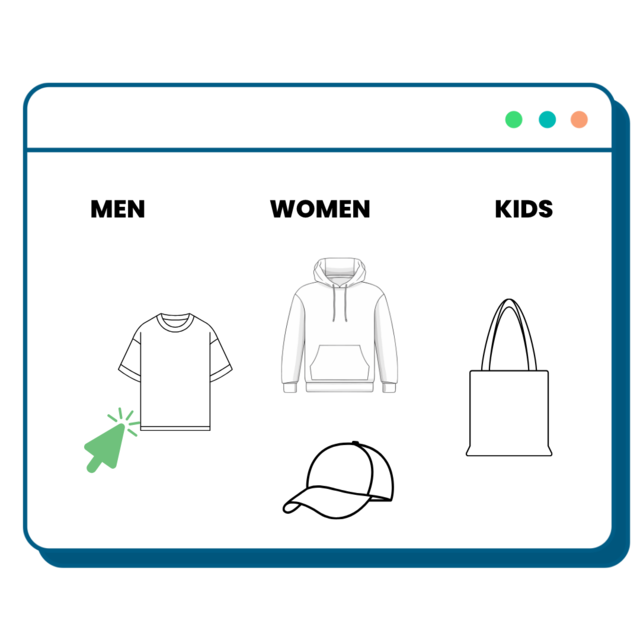
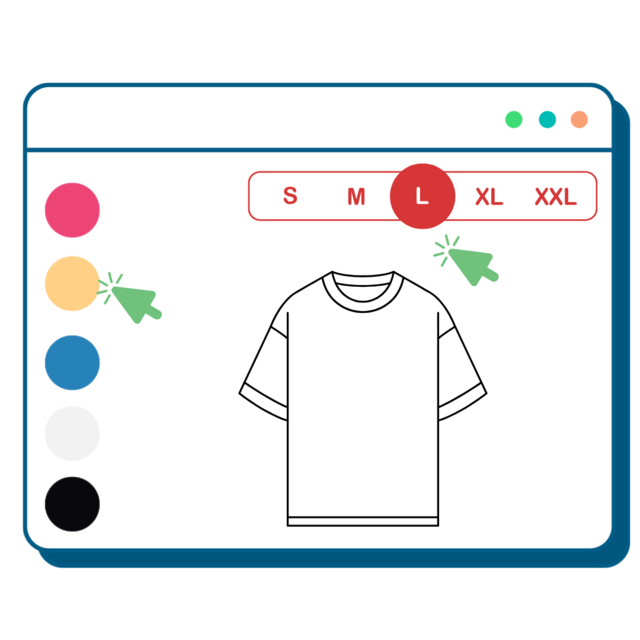
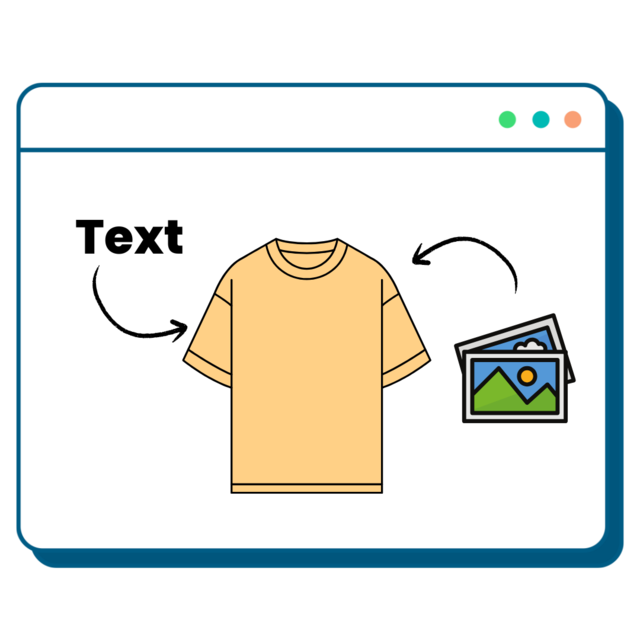
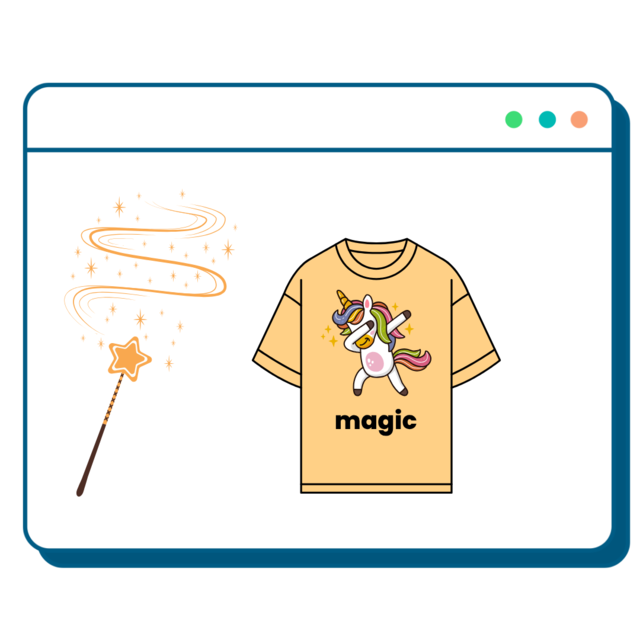
🎨 Using the Online Designer : Our Online Designer is flexible and easy to use — whether you're adding text, images, or team names, you have complete creative control.
Click and drag to move elements
Resize by dragging the corners
Use the Locations Panel (right hand side) to switch between printing areas like the front, back, or sleeve .
As you design, you’ll see a live quote in the top-right corner, which updates as you go. If you're ordering 3 or more items, you’ll see two prices: the total cost and the per-unit price (GST included) — so you always know exactly what you're paying.
✍️ Add Text
Click "Add Text" in the toolbar to enter names, messages, team titles — whatever you like!
You’ll be able to customise your text with
A wide range of fonts, colours, and outlines
Positioning tools to move and resize your text
Special effects like glows, shadows, and gradients
🖼️ Add Designs (or images)
Click "Add Design" to upload your own artwork or choose from our store’s collection of ready-made graphics (we update this regularly )
When uploading your own image: Wait for the upload to fully complete (larger files may take a few moments) You’ll be asked to confirm a quick copyright acknowledgment. Once added, use the editor to adjust size, position, and effects like borders or filters.
📸 Pro Tips for Best Results: Want your custom t-shirts to look amazing?
Keep these things in mind: Image Quality & File Formats
Bigger = better when it comes to artwork
Upload images at 300 DPI in RGB colour mode
For transparent designs, we recommend .PNG files
Avoid low-res screenshots or blurry images
👕 Add Team Names & Numbers:
Creating personalised teamwear just got easier. To add individual names and numbers to your custom t-shirts, simply click "Add Team Name" in the toolbar. You’ll be prompted to enter the quantity for each size — don’t stress, you can always update this later. Once you proceed, you'll have the chance to enter each team member’s name and number. You can also customise each shirt individually by selecting the "View" option next to each entry — this will open up the Online Designer for that specific item. Want to make changes later? Just select "Edit Team Names" from the Product window on the left-hand side to return anytime.